
 Nguyễn Chính Ngọc Liên
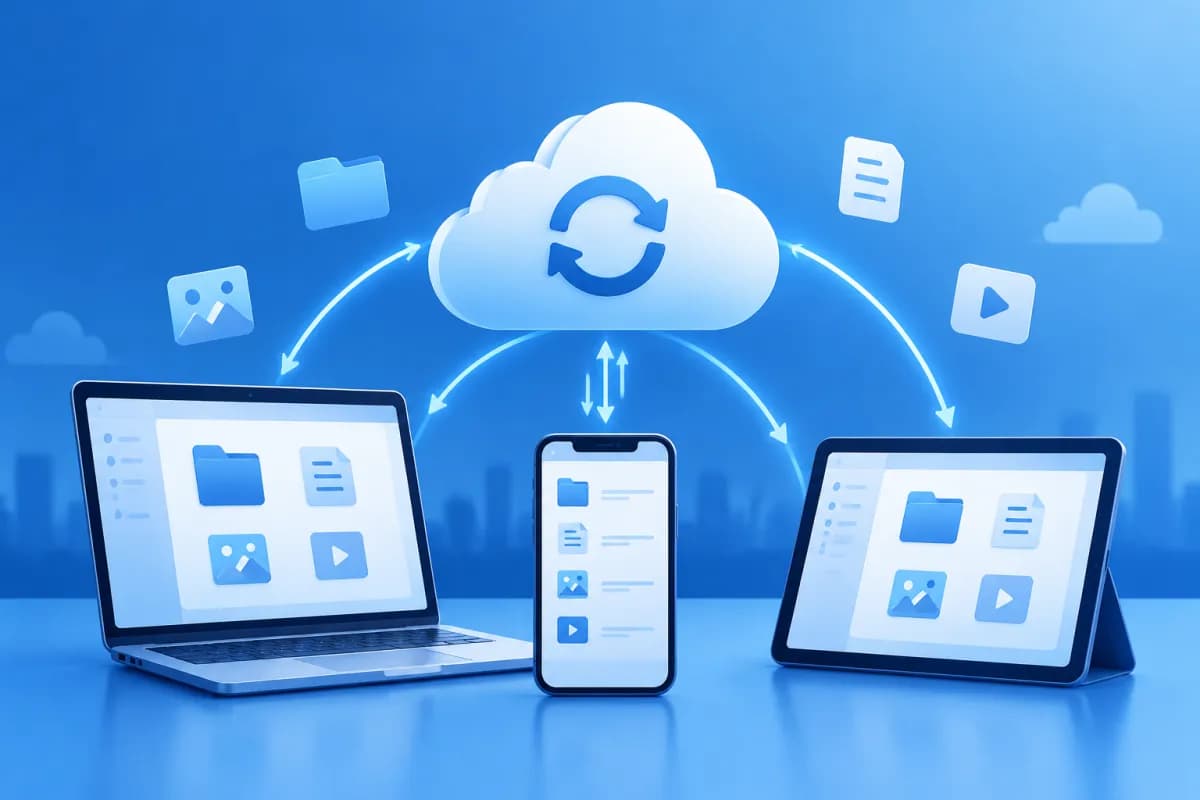
When you regularly switch between a phone, computer, and tablet, finding the right version of a document can be inconvenient. Cloud sync solves this problem by updating data across devices over the internet, so you can pick up where you left off without manually sending files back and forth.
For individuals, this feature makes data easier to access. For businesses, cloud sync can improve collaboration and keep workflows running smoothly. To use it effectively, however, you need to understand how it works, distinguish syncing from backup, and choose an implementation approach that fits your needs.
What Is Cloud Sync?
Cloud sync is the process of keeping data consistent across one or more devices and an online storage service. When a user creates, edits, or deletes a file on one device, the change is sent over the internet to the cloud system. The system then updates the data on other devices with authorized access.
For example, you edit a spreadsheet on your computer at the office. Once the file syncs successfully, the updated version may appear on your laptop or phone. You do not need to email the file to yourself or copy it using a USB drive, as long as your devices are connected and signed in to the correct account or configured folder.
Cloud sync can be used for many types of data: documents, photos, contacts, calendars, notes, app data, or work folders. Depending on the service, syncing may happen almost instantly or at regular intervals. Some platforms sync only selected folders, while others support broader syncing across devices.
How Does Cloud Sync Work?
At a basic level, cloud sync creates a connection between a device and an online server. Users sign in to the service, select the data to sync, and grant the required permissions. Software or an app on the device monitors changes within the selected scope and sends data to the cloud when an internet connection is available.

A typical process may involve the following steps:
- Detecting changes: The app identifies a new file, an edit, or a deletion in the synced folder.
- Transferring data: The change is sent to a server over the internet. Some services send only the data that has changed to reduce transfer time.
- Updating the status: The server records the new version and identifies which devices and users are authorized to receive the change.
- Syncing to other devices: The app on each relevant device downloads the data or change information, keeping the content up to date.
Most services can keep some data temporarily on a device so users can work offline. Once the connection is restored, the changes are sent to the system. Offline capabilities depend on the app, device storage, and how the business configures access permissions.
What Happens When Data Conflicts Occur?
A conflict occurs when the same file is edited on multiple devices before all changes have been fully updated. Depending on the service, the system may prioritize the version saved last, keep both versions, or ask the user to choose which content to keep. For important data, businesses should check how the platform handles conflicts and guide employees to avoid simultaneous edits until they understand the process.
Benefits of Cloud Sync for Individuals and Businesses
The value of cloud sync goes beyond storing files online. When configured properly, it can make data more readily available and reduce manual tasks in day-to-day work.

- Flexible data access: Users can open the latest version on a supported device, whether they are working from home, at the office, or on the go.
- Less file sharing back and forth: Instead of sending multiple attachments, teams can work on a shared file or folder, reducing the risk of using the wrong version.
- Support for collaboration: Authorized team members can view or edit data together. Some platforms offer version history, comments, and change notifications.
- Time savings in daily operations: Automatic updates reduce manual copying and help prevent errors caused by forgetting to transfer files between devices.
- Flexible work support: Employees can continue working on another device if their primary device is unavailable, subject to access permissions and connectivity.
- Scales with business needs: Businesses can choose storage capacity, account numbers, and administrative features suited to their size rather than building an entire storage infrastructure themselves.
For individuals, a clear benefit is that photos, contacts, and documents can stay updated across devices. For businesses, cloud sync can help sales teams access the latest materials, help marketing teams use the correct content versions, and enable departments to work with shared data. The results still depend on the processes, tools, and access controls in place.
How Is Cloud Sync Different from Cloud Backup?
Syncing and backup are often used together, but they are not the same thing. Syncing aims to keep data consistent across multiple devices or accounts. Backup aims to retain a copy of data that can be restored if a file is lost, damaged, or no longer accessible.
One important point is that an accidental edit or deletion can sync across other devices. If a service does not retain version history or deleted files for an adequate period, it may be difficult to restore the content. Therefore, syncing should not be treated as the only backup solution.
- Sync: Keeps changes updated across locations, usually continuously or at regular intervals.
- Backup: Creates a stored copy for restoring data based on a set schedule or policy.
Businesses should combine syncing with a separate backup strategy, test recovery capabilities, and define data retention periods. This approach helps reduce risks caused by user errors, device failures, or security incidents.
What to Consider When Implementing Cloud Sync
Choosing a popular service alone does not guarantee that data will be used safely and effectively. Before implementation, businesses need to identify the types of data involved, user groups, permitted devices, and relevant compliance requirements.

Assess Security and Access Permissions
Prioritize services with appropriate safeguards, such as data encryption, multi-factor authentication, activity logs, and role-based access management. Grant each individual or group only the permissions they need, and review and revoke access when employees change roles or leave the company. Employees should also be trained to recognize suspicious links and protect their accounts.
Manage Devices, Storage, and Connectivity
Clearly define which devices are allowed to sync company data, especially when personal devices are involved. Consider storage capacity, network speed, and costs as the number of users grows. For large data sets, you can limit which folders sync or choose suitable transfer times to avoid affecting connectivity and work performance.
Test Before Rolling Out Broadly
Businesses should pilot the service with a small group, testing update speeds, offline access, conflict handling, and version recovery. Then, establish consistent guidelines for folder structures, file naming, access permissions, and incident handling. If the data is tied to complex business processes, assess how it will integrate with existing systems rather than implementing it in isolation.
Conclusion: Cloud Sync Keeps Data Ready to Use
Cloud sync keeps data updated across devices, supports flexible access, and makes collaboration easier. However, it is not a complete replacement for backup. Businesses need to combine appropriate access controls, account protection, device management, and a data recovery plan to reduce risk.
If your business is considering a platform, building digital workflows, or connecting data sync with operational systems, LilyTech can help assess your needs and recommend a suitable approach. Contact LilyTech to discuss technology solutions that can help your business manage data and work more effectively.

