
 Nguyễn Chính Ngọc Liên
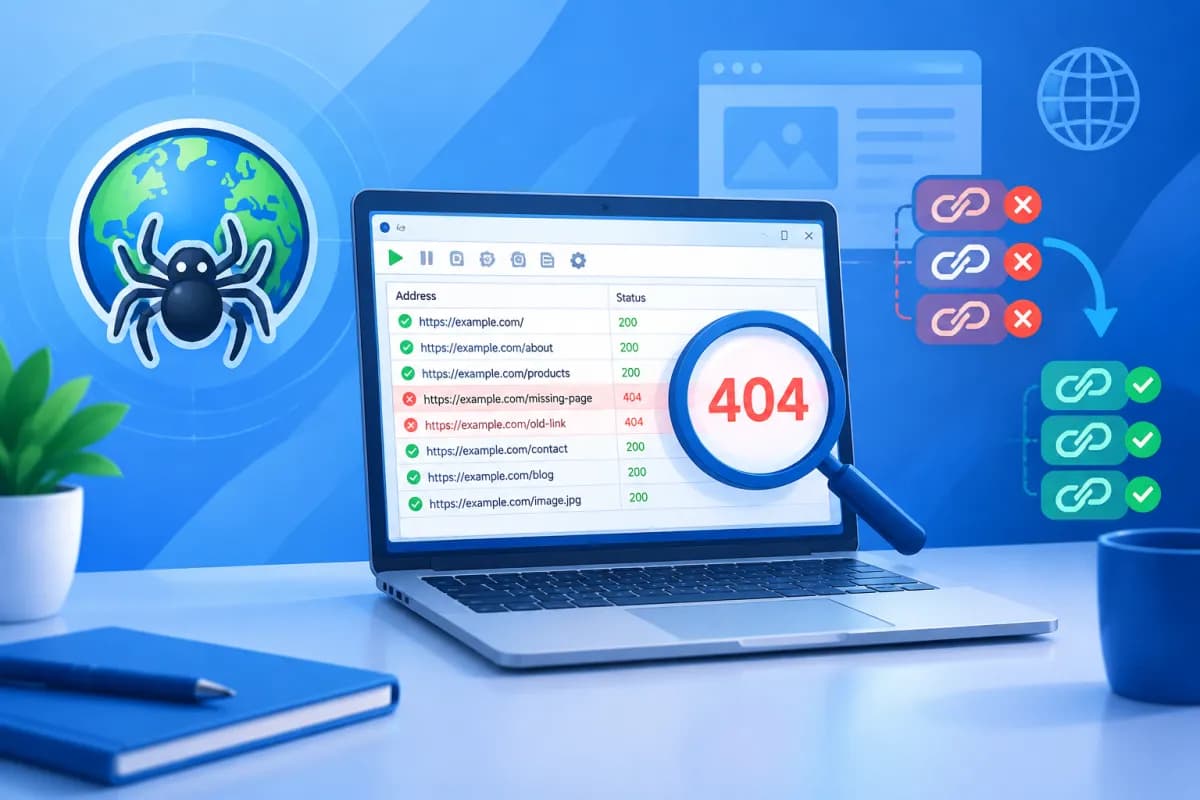
A 404 error appears when a user or search engine visits an address that no longer exists. This often happens after a page is deleted, a URL is changed, the website structure is updated, or an address is entered incorrectly. If left unresolved, 404 errors can disrupt the customer journey, make navigation less effective, and make the website harder to manage.
Xenu Link Sleuth is a desktop tool that crawls website links and reports addresses it cannot access, including many URLs that return a 404 status code. However, finishing a crawl does not mean every error URL should be redirected. This guide explains how to check and classify errors, update internal links, and set up appropriate redirects. Follow these steps to learn how to fix 404 errors found with Xenu Link Sleuth.
1. Understand 404 errors and the role of Xenu Link Sleuth
The HTTP 404 status code indicates that the server cannot find the resource at the requested address. Users may see a “Page not found” message, while link-checking tools record the URL as a broken link. The error may affect an internal page, an image file, a downloadable document, or an external address linked from the website.
Xenu Link Sleuth starts from a URL and follows the links it can access to compile a list of addresses and their response statuses. This allows website administrators to find broken links without manually clicking through every page. The report can also show which pages link to an error URL, helping you identify the right place to make a fix.
Even so, you should verify the results. A website may block automated requests, require a login, limit access speed, or respond inconsistently. A URL flagged by the tool does not always mean regular visitors will encounter an error. Open the URL in a browser, check its response code with an appropriate tool, and compare the result with the website configuration before making changes.
2. Crawl the website and review the 404 report
Prepare before crawling
Choose the domain to check and define the crawl scope, such as the entire website, a content directory, or a specific group of pages. For a large website, break the crawl into sections to make the results easier to review and avoid placing unnecessary load on the server. If the website has staging pages, an admin area, or private sections, consider excluding them.

Before running Xenu Link Sleuth, make sure your computer can access the website and that the site is not undergoing maintenance. If possible, save the current configuration and notify the technical team before checking a high-traffic system. After the crawl, export or save the report so you can compare results before and after fixing the issues.
Review the key information in the report
Focus on the error URL, its response status, and the source page containing the link. The source page is an important starting point: the same broken URL may appear in multiple articles, menus, or category pages. Group results by response code and resource type to avoid confusing 404 errors with server errors, connection issues, or other statuses.
Before fixing anything, check the reported URL in a browser or with an HTTP-checking tool. Pay attention to details such as uppercase and lowercase letters, Vietnamese diacritics, hyphens, file extensions, and trailing slashes. Even a small URL typo can prevent the server from finding a page.
3. Classify errors before deciding how to fix them
Classifying errors helps you choose the right solution for each case instead of redirecting everything to the homepage. You can divide 404 errors into the following groups:

- Incorrect internal link: The destination page still exists, but a link in an article, menu, call-to-action button, or footer has been entered incorrectly. In most cases, fix the link directly on the source page.
- Changed URL: The page is still available, but its address changed due to a category restructure, URL optimization, or system migration. Update internal links and consider redirecting the old URL to the new one.
- Deleted content: A product, article, or document is no longer available. Determine whether there is a genuinely equivalent replacement, or whether the page should return a 404 or 410 status.
- Broken external link: A third-party website has deleted or changed the page. Replace it with an active, trustworthy source with equivalent content, or remove the link if it is no longer needed.
- Result needs verification: The tool could not access the URL because of technical restrictions, a temporary issue, or an authentication requirement. Do not remove or redirect it until you confirm its actual status.
To prioritize the work, record the error URL, source page, cause, traffic or importance of the page, and planned action. Links in menus, key service pages, or high-traffic articles should be addressed first.
4. Update internal links and handle changed URLs
If the destination page still exists, fix the link where it originates. Check article content, categories, navigation menus, footers, buttons, banner links, and shared content blocks. In a content management system, search the content library for the old URL or ask the technical team to check the data if the link is stored in multiple places.
Prioritize using the canonical URL that matches the website’s structure. Do not just fix the visible text while leaving the URL in a button, structured data, or page template unchanged. After updating the link, open the source page and click it to confirm that it leads to the right content.
If the URL has changed but the corresponding content is still available, set up a 301 redirect from the old address to the new one. A permanent redirect tells browsers and search engines that the page has moved, and helps people reach it through old links. However, a 301 does not replace updating internal links: links on your website should point directly to the new URL to reduce redirect steps and avoid redirect chains.
Redirects should serve the right purpose. Do not send every error URL to the homepage or an unrelated page; this can confuse users and may be treated as a soft 404, where a page appears to redirect but the content is not relevant. If a page has been deleted and there is no suitable replacement, the server can return a 404 or 410 status. Consider user needs, the value of old links, and whether a replacement page exists before deciding.
5. Set up redirects and check the results
Choose an appropriate implementation method
Redirect rules can be configured on the web server, in the content management platform, or through a redirect management application, depending on the website architecture. For multiple URLs, prepare a clear mapping between old and new addresses before implementation. Test the rules in a staging environment if available, especially when changing server configuration.

Each redirect should lead directly to the appropriate destination page. Avoid chains where an old URL redirects to an intermediate URL before reaching the new one, and check that no redirect loops are created. When changing the structure of multiple pages, review the full list before deploying it to the live environment and save a copy of the configuration so you can restore it if issues arise.
Rerun the crawl and monitor
After fixing links or implementing 301 redirects, run Xenu Link Sleuth again over the same scope to compare the results with the original report. Open a sample of important source pages and check that old URLs lead to the right new pages or return the expected status. Confirm that internal links no longer point to old paths and that resources such as images and downloadable files are still working.
Continue monitoring server logs, website analytics tools, and indexing reports to catch new error URLs. Websites that regularly publish updates should make link checks part of their maintenance process rather than treating them as a one-time task. Schedule regular crawls or check links after a restructure, website migration, or major content release.
Conclusion
Xenu Link Sleuth helps website teams find many broken links, but effective fixes depend on verifying and classifying the results. Fix internal links when the destination page still exists, use a 301 redirect when there is a relevant replacement, and avoid redirecting deleted content without a good reason. Finally, rerun the crawl to confirm your changes and continue checking the website regularly.
If your business needs a website review, improved link structure, or a technical maintenance process, LilyTech can recommend an approach suited to your current website and business goals. Contact LilyTech to discuss website design, user experience optimization, and technology solutions that support growth.

