
 Nguyễn Chính Ngọc Liên
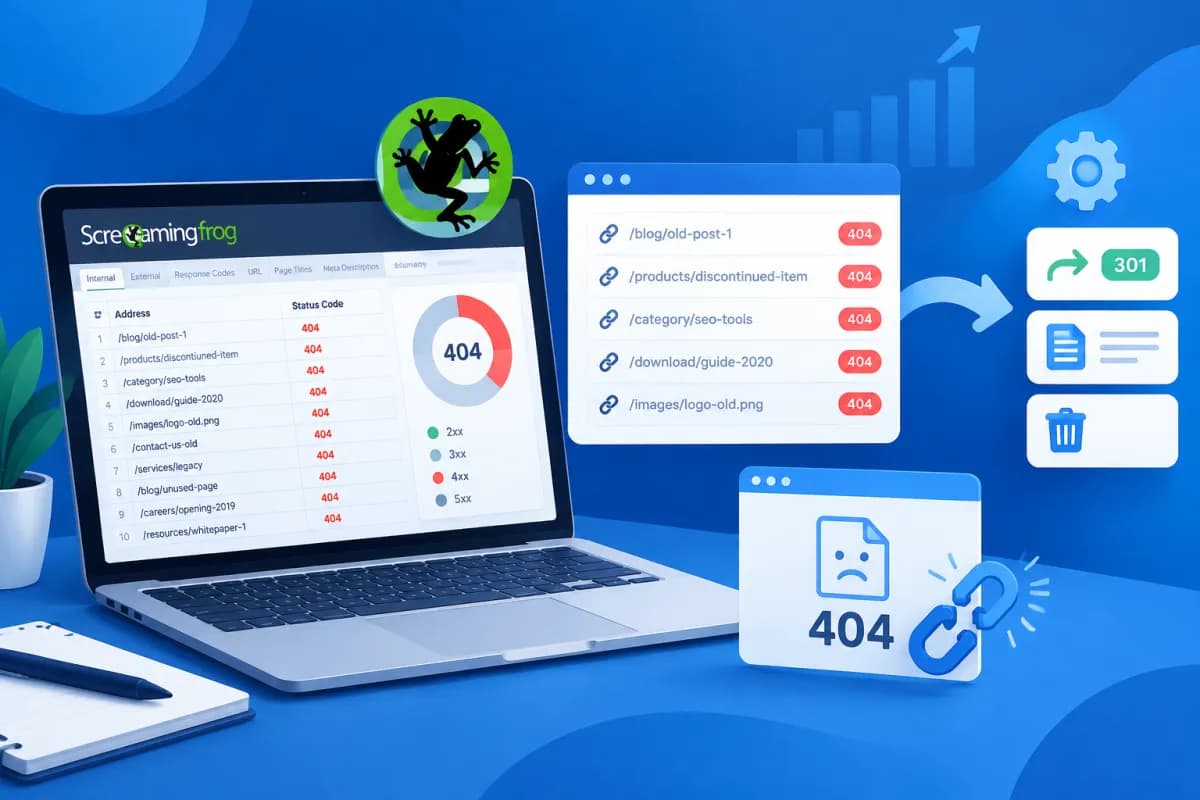
A 404 error occurs when a user or search engine visits a URL but the server cannot find the corresponding content. If a website has many broken links, it can create a poor user experience, disrupt the conversion journey, and make it harder for search engines to discover important pages. This guide explains how to find and fix 404 errors with Screaming Frog.
With Screaming Frog, you can crawl a website, filter URLs that return a 404 status code, and identify which pages link to them. This article walks you through how to check for errors, assess their priority, and choose the right fix—instead of mechanically redirecting every URL.
Prepare and configure Screaming Frog
Screaming Frog SEO Spider is a desktop website crawler commonly used to check link structures and technical SEO issues. Before you begin, decide what you need to check: the entire website, a specific directory, or a list of URLs exported from another system.
The free version limits the number of URLs you can crawl in a single run. That may be enough for an initial review of a small website; larger websites may need a paid license or a crawl split into groups of URLs. Download and install the appropriate version, then open the tool and configure the settings you need.
- Select Spider mode if you want the tool to follow links and discover pages across the website.
- Enter the domain or starting URL in the address bar, such as the homepage or a specific directory.
- Check the crawl settings under Configuration. If you need to review image links, JavaScript, or other resources, enable the relevant URL types.
- If the website requires a login or is protected by security settings, confirm that you have access and configure the appropriate settings before crawling.
- Click Start and wait for the crawl to finish. Large websites may take longer, so avoid running crawls at a speed that puts unnecessary load on the server.
If the website uses JavaScript to load content or links, configuring the appropriate rendering mode may help the tool find additional URLs. However, this mode typically uses more resources. Start with the basic configuration, then run an additional check if you suspect that some links were missed.
How to filter 404 URLs in Screaming Frog
After the crawl, you can view the response status of URLs in the results interface. To filter for pages that cannot be found, follow these steps:

- Select the Response Codes tab in the results interface.
- Open the filter and select Client Error (4xx) to display URLs returning 4xx status codes.
- Check the Status Code column and look for URLs with a 404 code. Don’t assume that every 4xx error is a 404: codes such as 403, 410, and 429 have different meanings and require different responses.
- Select a URL to view its details, then export the data if you need to analyze it or assign it to the content, SEO, or development team.
When exporting the report, keep columns such as URL, status code, content type, and discovery source, if available. This information helps you distinguish between broken HTML pages, images, downloads, and other resources. Before making changes, verify the URL in a browser or with an independent check to rule out a temporary error.
Keep in mind that a 404 is not always a problem that needs fixing. An old URL that was intentionally removed, no longer needs to be accessible, and has no suitable replacement may correctly return a 404 or 410. The goal is to address errors that affect users and search value, not to turn every 404 response into a redirect.
Identify pages that link to broken URLs
Finding a 404 URL is only the first step. To know where to make changes, you need to find the pages that contain links to that URL. In Screaming Frog, select a 404 URL in the Response Codes table, then open the Inlinks tab in the details panel below.

The Inlinks report shows which source pages link to the broken URL, along with anchor text and link location when that information is available. This helps you distinguish internal links managed by your website from links coming from external pages.
- Internal links: the source page is on your website. Open it to find out whether the link appears in the content, menu, footer, or a shared component.
- External links: the source page is on another domain. You cannot directly edit content on a third-party website, but you can consider redirecting the destination URL if there is a suitable replacement.
- URLs in the sitemap: if the broken URL is still in the sitemap, check your content management system or sitemap generation settings and remove URLs that are no longer valid.
To export a list of source pages, select the broken URL you want to check and use the tool’s Inlinks export option. If you have many errors, compile the destination URLs and source pages in a spreadsheet, then group them by page type or URL pattern. This can help reveal widespread issues—for example, a URL pattern change that has left multiple pages linking to old addresses.
After fixing internal links, crawl the website again to confirm that the source pages no longer link to broken URLs. If a link appears in a menu or shared page template, prioritize fixing it in the underlying component rather than editing each page individually.
Prioritize issues and choose the right fix
Not all 404 URLs have the same level of impact. Before deciding what to do, consider the URL’s purpose, link sources, traffic, external backlinks, and whether suitable replacement content exists. You can use the following prioritization process:

- High priority: URLs in the main navigation, pages with significant traffic, pages that drive conversions, or URLs linked to by many internal pages.
- Medium priority: URLs with a few internal links, links in older articles, or signs that users still visit them.
- Low priority: Broken URLs with no internal links, no clear business value, and a deliberate removal history.
Depending on the cause, fixes generally fall into one of these categories:
- Fix internal links: Update the destination URL in the content, menu, footer, or website configuration if the intended page still exists at a new address.
- Set up a 301 redirect: Use one when a URL has changed permanently and a genuinely equivalent replacement page exists. Send users directly to the appropriate destination, avoiding redirect chains or blanket redirects to the homepage.
- Restore the page: Consider this if the page was deleted by mistake, contains valuable content, still has search demand, or supports business activities.
- Keep the 404 or return a 410: This is appropriate when content has been permanently removed and there is no reasonable replacement. Make sure the error page is helpful and guides visitors back to related content.
Key principle: only redirect when the new destination meets a similar need. Redirecting every broken URL to the homepage can confuse users without addressing the underlying problem.
Check your fixes and prevent recurring errors
After updating links, configuring redirects, or restoring pages, run another crawl with Screaming Frog. Check the old URLs, destination URLs, and source pages to confirm that each one now has the correct status. For redirects, make sure the old URL returns the expected redirect status and the destination responds normally, without leading to another error or creating a loop.
To make the review process more reliable, keep a record of the original error list, the cause, the action taken, and the completion date. If the website’s URL structure changes, also check the sitemap, menu, important content pages, and links generated by your content management system. Crawling regularly after major changes can help you catch issues sooner than waiting for users to report them.
When assessing the results, don’t focus only on reducing the number of 404s. Confirm that important pages are accessible, internal links lead to the right content, and redirects preserve the user journey. This helps improve technical SEO health while protecting the website’s user experience and conversion opportunities.
Conclusion
Screaming Frog helps you find 404 URLs, trace them back to the pages linking to them, and export data for follow-up. An effective process involves filtering for the right response codes, identifying link sources, prioritizing issues by impact, and choosing whether to fix a link, redirect or restore a page, or keep the appropriate error code. Then crawl again to verify the results.
If your business needs a technical SEO review, website optimization, or a structured approach to content management and digital transformation, contact LilyTech for advice on a solution that fits your goals and resources.

