
 Đoàn Lê Minh Anh
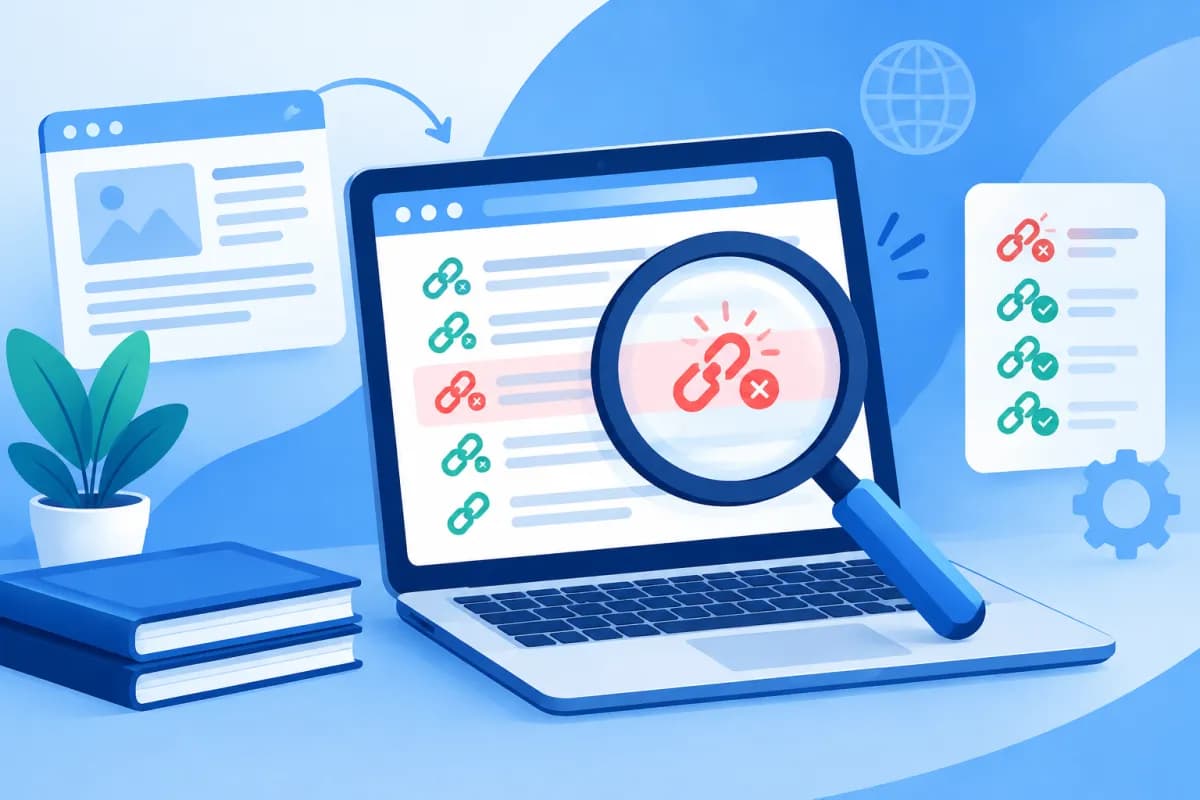
Broken links can send visitors to error pages, interrupt the buying journey, and make a website seem unprofessional. The Check My Links broken link checker helps administrators review the links on a page and quickly identify working links, redirects, and broken links that need attention.
This article explains how to scan links with the tool, what each status means, and how to follow an effective troubleshooting process. With the Check My Links broken link checker, you can review your website systematically instead of clicking through every link by hand.
What is Check My Links and what is it used for?
Check My Links is a tool for checking links on a web page. It is commonly used as a browser extension: open a page and run the extension, and it scans the links in the content, then highlights the results directly on the page. This makes it easy to see which links are working, which redirect, and which may have errors.

Check My Links is useful for auditing blog posts, product pages, resource pages, category pages, and landing pages. Websites with older content, frequently changing URLs, or links to external sites should be reviewed regularly. Early checks can reveal removed resources, pages that have moved, or incorrect internal URLs introduced during a website update.
Keep in mind that the tool checks the technical status of links at the time of the scan; it does not determine whether a link is relevant to the content. A URL that returns a working status may still lead to an unrelated page, outdated content, or a destination that does not suit your business goals. Treat automated results as an initial screen, then verify them manually.
Prepare before scanning links on a page
Before running the tool, decide what you want to check. If you are just getting started, choose a specific page, such as a post with many external links, an important product page, or an active campaign landing page. Scanning one page at a time makes results easier to manage and reduces the risk of missing errors on websites with extensive content.

Next, open the page in a browser with the Check My Links extension installed and wait for the content to load fully. Some pages display links only after visitors scroll, open a menu, select a tab, or interact with the content. If the extension scans only links present in the page code when it runs, elements that have not loaded or been opened may not appear in the results. For these pages, scroll through all the content and open the areas you want to check before scanning.
Record the page URL, the date of the check, and the types of errors found. This simple record-keeping makes it easier to compare results across reviews, track resolved issues, and avoid duplicate checks. For business websites, prioritize pages with high traffic, pages that contribute to conversions, or pages used in marketing campaigns.
How to scan links and read Check My Links results
Once you have opened the page you want to check, select the Check My Links extension icon in your browser and start the scan. The tool checks the links it detects one by one. Depending on the version and its configuration, results are usually shown using colors or a list of statuses. Refer to the legend for the extension you are using, as color conventions may vary between versions.

When the scan is complete, do not rush to delete or edit every flagged link. First, sort the results into three groups: valid links, redirects, and potentially broken links. Then open suspicious URLs in a new tab to verify them. A server may be temporarily slow, block automated tools, or require a login, so scan results may not accurately reflect the experience of a typical user.
- Valid links: The URL responds normally and takes users to the intended content. These links can usually stay as they are, but you should still check that the destination is relevant and up to date.
- Redirects: The original URL redirects to a different address. A redirect may be intentional, such as when a website changes its URL structure, but it can also add a page-load step or lead to a destination that is no longer suitable.
- Broken links: The link cannot be accessed, points to a page that does not exist, or returns a server error. Verify these links promptly, especially when they appear on high-traffic pages or in the conversion journey.
How to distinguish redirects from broken links
A redirect is not the same as a broken link. If an old URL automatically takes users to a new page with equivalent content, the link may still work as intended from a user experience perspective. However, if you can edit the content, update the link to point directly to the final destination URL. This reduces extra steps, limits the risk of redirect chains, and gives administrators better control over their links.
A broken link typically leads to a page-not-found message, a server error, or a notice that the page cannot be accessed. Even so, one failed check is not enough to conclude that a URL is permanently broken. Try opening it again, check the address for typos, and verify it at another time. If an external link is blocked by security settings or requires authentication, assess it manually rather than assuming it is broken.
An effective process for fixing broken links
After verifying an issue, determine what type of link it is and where it appears. Internal links to pages on your own website can usually be fixed by updating the URL, restoring the destination page, or setting up an appropriate redirect. For external links, find a trustworthy alternative, update the URL if the content is still available, or remove the link if the resource has been taken down.

- Correct an incorrect URL: Check for typos, hyphens, character encoding, and relative paths before making changes.
- Update the destination: If a page has moved to a new address, replace the URL in the content with a direct link to the final page.
- Restore or redirect: For valuable internal pages, consider restoring the content or redirecting to a closely related replacement page.
- Remove links that are no longer needed: Delete the broken URL if there is no suitable replacement, and revise the sentence so the content still reads naturally.
- Check again after updating: Run another scan and open a few important URLs to confirm the issues have been resolved.
Prioritize fixes based on their impact, not just the number of errors. A broken link on a purchase button, form, service page, or high-traffic piece of content should be fixed before a link in a rarely viewed article. When working as a team, record who is responsible and the status of each fix so issues do not get overlooked.
Tips for supporting SEO and user experience through link checks
Broken links are not the only factor that determines search rankings, but they can degrade the user experience and create difficulties for both visitors and crawlers. A page with many broken links wastes visitors' time, undermines trust, and makes it harder to find the next piece of information. Link checks should therefore be part of your website maintenance process, alongside content reviews, page-speed checks, and mobile usability testing.

Do not rely on a browser extension alone to audit an entire website. This type of tool is usually suited to quickly scanning an individual page, but it may not cover every URL on a large website or links generated dynamically. For larger sites, combine a dedicated website crawler with data from your site management platform and manual checks of important pages. Also consider access limits and the website's security policies when using automated tools.
To keep the process consistent, schedule checks according to how often content changes: review important pages more frequently, while less frequently updated content can be checked periodically. LilyTech can help businesses build and maintain websites and review technical and user experience issues, ensuring optimization goes beyond finding errors and supports business goals.
Conclusion
Check My Links quickly scans links on individual pages and provides a clear starting point for distinguishing valid links, redirects, and broken links. To resolve issues accurately, verify suspicious results, prioritize errors that affect the user journey, update links as needed, and scan again after making changes.
Regular link checks are a practical part of keeping a website trustworthy and easy to use. If your business needs advice on its website, technical optimization, or a review process suited to the scale of its site, contact LilyTech to discuss an appropriate solution.

