
 Nguyễn Chính Ngọc Liên
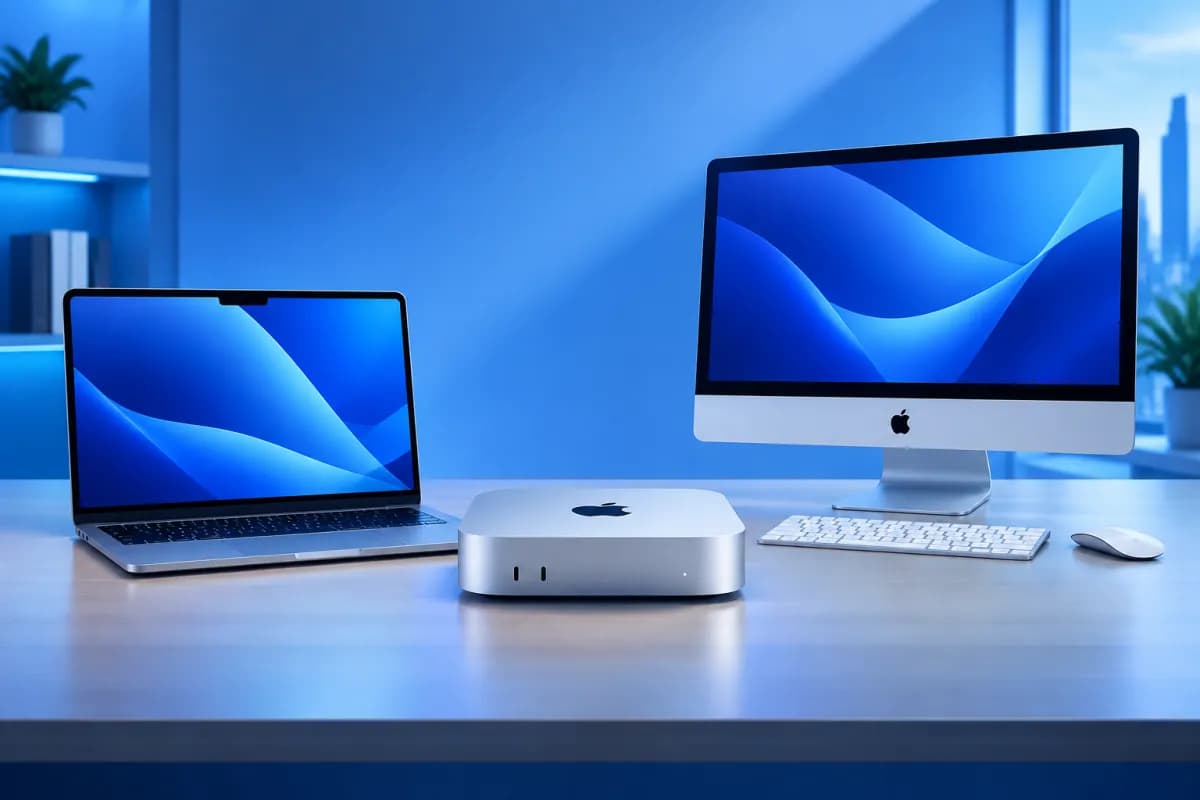
When shopping for an Apple computer, many people weigh the Mac mini against the MacBook and iMac. All three run macOS, but they differ significantly in design, how they’re used, and what you need to spend to put together a complete setup. Choosing the right device depends not only on its specifications but also on where you work and whether you need to take it with you.
So, what is a Mac mini, and who is it for? This article explains the Mac mini’s features and compares it with the MacBook and iMac in terms of flexibility, cost, and intended use, helping you make a more practical choice.
What Is a Mac mini? A compact desktop computer
The Mac mini is Apple’s small-form-factor desktop computer. Rather than having a built-in screen, keyboard, and trackpad like a laptop, it’s a standalone computer designed to connect to an external display and accessories. You can pair it with a monitor, keyboard, mouse, or trackpad to suit your needs.
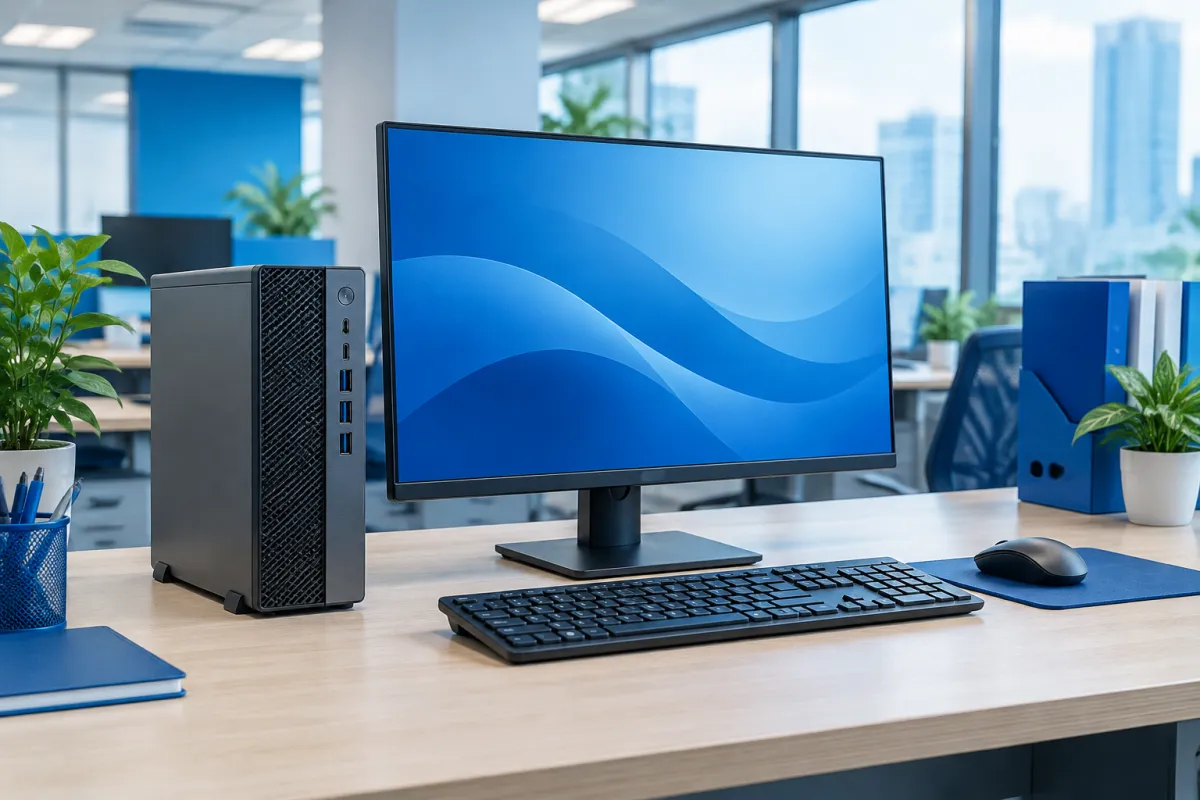
The Mac mini runs macOS and uses Apple Silicon chips in newer generations. Memory and storage configurations vary by model. When choosing a computer, check the specifications of the exact version you plan to buy rather than assuming that every Mac mini performs the same way.
One notable feature is that, despite its small size, the Mac mini can handle many everyday tasks, such as writing, working with spreadsheets, video calls, browsing the web, managing content, and editing photos or videos at a level suited to its configuration. It can also serve as a dedicated computer at home or in the office. However, because it has no built-in display, you’ll need additional peripherals to create a complete workstation.
In short, the Mac mini is for people who want to use macOS on a compact desktop and either already have or want to choose their own monitor and accessories. That flexibility is an advantage, but those additional items must also be factored into the total cost.
Comparing the design and flexibility of the Mac mini, MacBook, and iMac
The clearest difference is how each product is designed to be used. The MacBook is a laptop with a built-in display, keyboard, and trackpad; the iMac is a desktop computer with an integrated display; and the Mac mini is a standalone computer that needs a display and accessories. Although all three run macOS, their setup and portability differ.
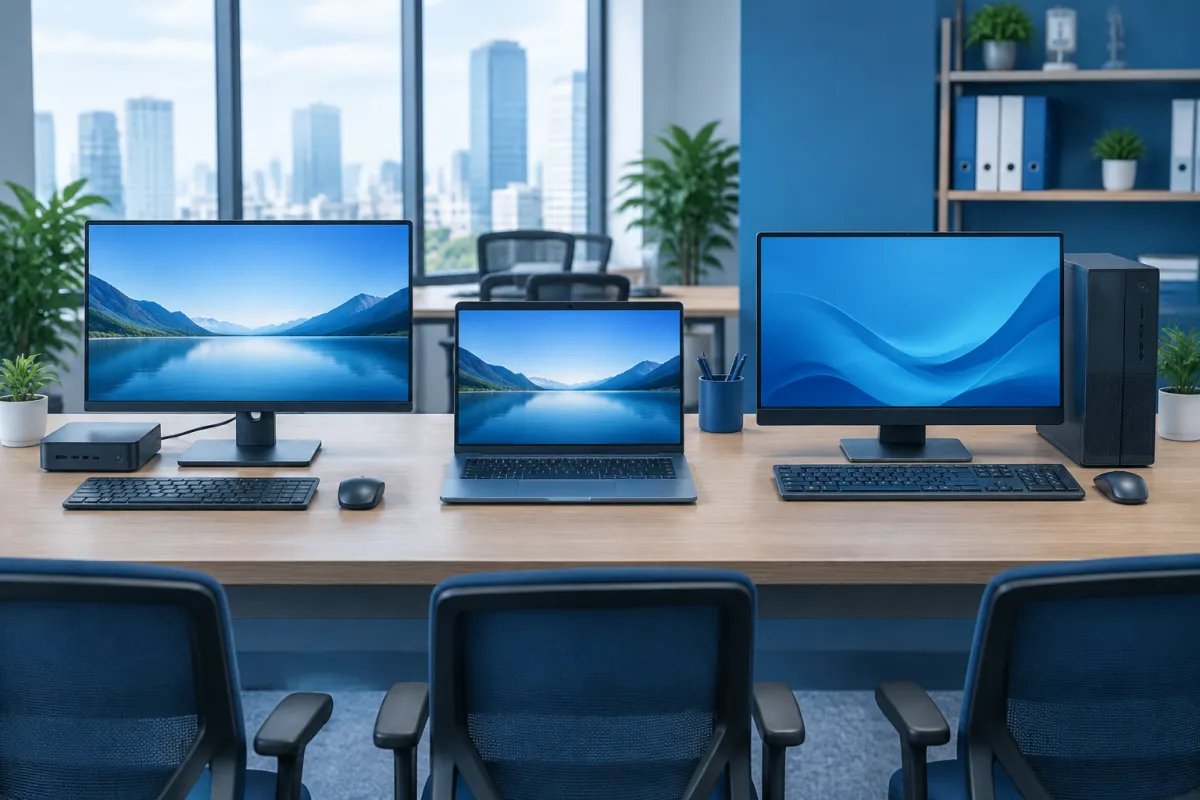
Mac mini: Its compact body fits easily on a desk or in a small workspace. You can choose your own display and accessories, but moving the entire setup is less convenient than carrying a laptop.
MacBook: Its all-in-one design includes a battery and makes it easy to take along. You can work at the office, at home, or on the go without setting up an external display.
iMac: It combines the computer and display in one device. Its tidy setup suits a permanent workstation, but upgrading or changing the display is less flexible than using a Mac mini with a separate monitor.
When it comes to connectivity, the Mac mini lets you choose compatible peripherals to suit your needs. This is useful if you already own a high-quality monitor or need to use multiple devices at your desk. If you’re new to the Mac mini, check its ports and compatibility before buying to avoid replacing accessories or incurring extra costs.
A MacBook is a better fit if flexibility means being able to take your computer to different places. An iMac suits people who want a tidy, integrated desktop setup without having to choose multiple components themselves. The Mac mini sits between these options: it’s a stationary desktop computer, but offers more flexibility than the iMac when it comes to choosing a display and accessories.
Comparing costs: factor in the display and accessories
The listed price of a Mac mini may be lower than that of a complete Apple computer setup, but it doesn’t represent the full cost of using the device. If you don’t already have a monitor, keyboard, and mouse, add their prices to your budget. Depending on how you work, you may also need an adapter, external storage, or a webcam.
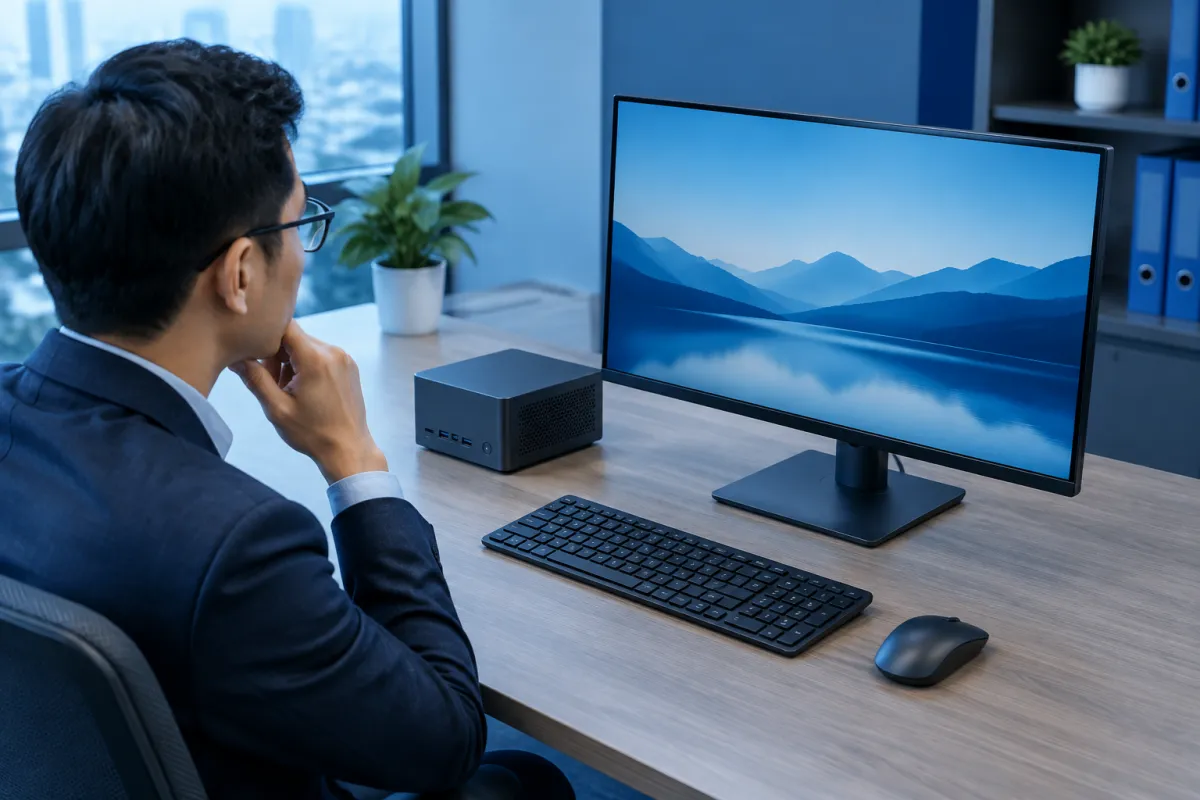
When comparing budgets, look at the total cost of getting a device ready to use instead of comparing the computer alone with the price of a MacBook or iMac. A suitable monitor can increase the initial cost of a Mac mini setup. On the other hand, if you already have compatible accessories, you can reuse them and spend less on new equipment.
Mac mini: It can be a cost-effective choice if you already have a suitable monitor and accessories. If you need to buy everything, budget for the complete setup.
MacBook: It’s often a more complete purchase because the display, keyboard, and trackpad are built in. You may still want an external monitor or accessories for extended desk-based work.
iMac: The price includes an integrated display, making it easier to budget for a complete setup. Still, consider the configuration and included accessories of the specific model.
Long-term costs also depend on your work. For example, content creators may need a high-quality display, substantial storage, or an external drive. People doing basic office work may not need to invest as much. Before deciding, list the hardware you already own, the accessories you’ll need to buy, and the applications you plan to use.
Choose a device based on how you’ll use it
There’s no single best device for everyone. Consider where you work, whether you need to take your computer with you regularly, and which accessories you already own. Here are some common scenarios to help you decide.
Choose a Mac mini if you have a dedicated workspace
The Mac mini suits people who work at a fixed desk, want to use macOS, and already have a monitor or are happy to choose their own peripherals. It can be a good option for businesses setting up a computer at a service counter, in a small office, or in a dedicated work area. You can also choose a display based on your preferred size and work requirements rather than being limited to the one built into a computer.
Before choosing a configuration, consider which applications you’ll run at the same time, the types of files you typically work with, and your storage needs. For specialized work such as video editing, design, or programming, check the software requirements against the specific configuration. Don’t assume that the computer will handle every task just because it’s compact or belongs to the Mac mini line.
Choose a MacBook if you travel frequently
A MacBook is a sensible choice if your work involves taking your computer to meetings, traveling for business, studying in different places, or working flexibly. Its key components are built in, so you can get started without carrying an external display. The trade-off is that you have less control over your display choice and desk setup than with a desktop computer.
Choose an iMac if you want an integrated setup
The iMac suits people who want a desktop computer with a built-in display and a tidy setup. It can be a convenient choice for a home or office, or for anyone who doesn’t want to buy and connect multiple separate devices. Consider where you’ll place it and whether you may want to change the display in the future, since the display is part of the computer.
If your work involves a mix of desk-based and mobile tasks, another option is to use a MacBook with an external monitor at the office or at home. This setup can cover different scenarios, but weigh the overall cost against how often you’ll actually take the laptop with you.
Conclusion: Is a Mac mini right for you?
The Mac mini is a compact macOS desktop computer for people with a fixed workspace who want to choose their own display, keyboard, and accessories. The MacBook stands out for portability, while the iMac suits people who want an integrated desktop with a built-in display. To choose the right device, consider where you work, how often you need to take it with you, what equipment you already own, and your total budget—not just the upfront price.
If your business is considering equipment for its team, LilyTech can help you explore technology solutions that fit your size and operational needs. Get in touch with LilyTech to discuss your options and find the right devices and workplace setup.

